Better Video Quality Made Easy: Tips and Tools for Creators
Author:Mike Fakunle
Released:January 13, 2026
When starting out with video editing, hours would go by trying to fix blur, noise, and shaky clips. Using AI video enhancers changed that completely.
Tools like Topaz Video AI and the AI features in Adobe Premiere Pro not only speed up the process but also handle problems that used to take days to fix manually.
How Video Enhancement Tools Work
The software goes through your footage frame by frame to spot issues like blur, grain, poor lighting, and low resolution, then applies fixes automatically. For example, Topaz Video AI or Adobe Premiere Pro can sharpen a talking-head clip shot on a phone while keeping skin tones natural.
Tests by VideoProc show noise reduction can cut grain by up to 85% on low-light clips without creating weird artifacts, giving creators quick, studio-quality improvements without spending hours on manual tweaks.

Benefits You'll Notice
Cleaner look fast: Grain and noise disappear in minutes instead of hours.
Sharper details: Faces and text become readable even from low-resolution footage.
Stable motion: Shaky clips smooth out without tedious keyframing.
These tools don't take over creative choices, they handle technical headaches so you can focus on storytelling and making your footage look good.
Key Features for Better Video Quality
1. AI Upscaling for Sharper Results
AI upscaling takes low-resolution clips and boosts them to HD or 4K by using patterns learned from huge visual datasets.
Instead of just stretching pixels, it creates detail where there was none, so older or blurry footage looks noticeably cleaner and more modern.
2. Color Repair and Light Adjustment
Bad lighting and washed-out color are common in phone clips or event footage.
Modern AI tools analyze tones and automatically fix exposure, improve contrast, and balance colors to make scenes look more natural. This kind of smart correction used to require hours of manual tweaking, but now it's mostly instant.
3. AI Video Stabilization
Recording while walking or shooting without a rig often leads to shaky clips. AI stabilizers read motion across frames and smooth out the movement, even when the shake is severe. This turns unusable hand-held footage into watchable video without complex editing.
4. Smart Texture Recovery
When details are lost in dark or busy environments, AI enhancers step in to recover texture, sharpen edges, and make faces and objects more defined. The result is footage that feels richer and more professional without looking overprocessed.
These features don't replace creative choices, but they take care of technical headaches so creators can focus on making better videos.

Improving Audio in Your Videos
Noise Cleaning for Clearer Speech
Background hums, fan noise, echoes, or street sounds can make dialogue hard to follow. AI tools automatically detect and remove these distractions, letting voices come through clearly. For creators using phones or cheap mics, this alone can make a huge difference in watchability.
Level Balancing
AI monitors speech volume and evens it out, so voices aren't jumping from too quiet to too loud. This is especially helpful for interviews or vlogs where recording conditions vary.
Better Voice Clarity
Beyond removing noise, AI can reduce harsh tones and highlight spoken words without making the voice sound artificial. It keeps speech natural while improving intelligibility.
Speeding Up Your Editing
Auto Cuts and Scene Detection
AI can spot scene changes and trim out empty or repeated sections. Long recordings become concise clips ready for posting, saving hours of manual review. Platforms like Adobe and cloud editors often use large datasets to make this process fast and accurate.
Quick Captions
Built-in speech recognition generates subtitles in multiple languages. This not only makes videos more accessible but also boosts reach across platforms.
Smart Templates
AI can apply style presets to match brand colors or social media formats, so creators don't start from scratch each time.
Fast Background Replacement
Even without a green screen, AI identifies subjects and swaps backgrounds cleanly. This opens up creative options for storytelling or professional-looking presentations.
Overall, AI handles repetitive, technical tasks in both audio and video, letting creators focus on content and storytelling while producing cleaner, more polished results.
How Different Creators Use Video Tools
Short-Form Creators
TikTok and Instagram creators use AI to sharpen faces, fix blur, and boost colors so clips look polished before posting. Tools like CapCut make it easy to clean up footage quickly and keep engagement high.
Marketing Teams
Marketing teams rely on AI to produce product demos and ads faster. Automatic color correction, lighting adjustments, and style presets let teams focus on messaging instead of technical editing. Adobe Premiere Pro's AI features are widely used for this purpose.
Teachers and Course Creators
AI improves audio clarity and sharpens visuals, helping students follow lessons more easily. Noise removal and level balancing make speech stand out, while stabilized slides and clear video reduce re-recording time.
People Restoring Old Footage
AI upscaling and color repair tools help restore grainy or faded footage. Family videos or archival clips can be enhanced so details are clearer and colors more natural, making old memories easier to watch and share.
Across these groups, AI handles repetitive, technical tasks so creators can focus on storytelling and ideas, producing cleaner and more professional-looking videos without spending hours on manual fixes.
Choosing the Right Video Enhancement Tool
Important Features
Look for tools with one-click enhancement, batch processing, and HD or 4K export. A clean interface helps you move fast without hunting through menus.
Popular choices include Topaz Video AI and Adobe Premiere Pro, which offer both automatic fixes and manual controls.
Cloud or Software
Cloud tools process heavy edits online, which is handy if your computer isn't very powerful, while installed software gives you full control and works offline.
Both approaches can produce polished results, so the choice mostly comes down to whether you prefer convenience or hands-on tweaking.
Using these tools, even shaky, blurry, or poorly lit clips can be cleaned up quickly, making your videos ready to share without hours of tedious edits.
How to Improve Video Quality Step by Step
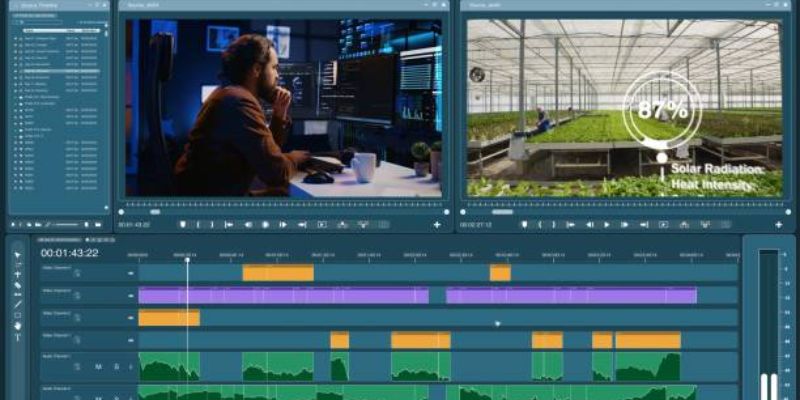
Step 1: Import Your Footage
Open your enhancer tool and load the video you want to fix. Most tools let you drag and drop files straight into the workspace, whether you're using an online tool or desktop software. This works for single clips or batches if you have multiple videos to process.
Step 2: Pick What to Improve
Decide what your video needs. Common fixes include noise reduction to clear grainy footage, upscaling to raise resolution, color correction for better tones, and stabilization to smooth camera shake. Some tools also offer frame interpolation to make motion smoother.
Step 3: Choose Enhancement Settings
Many tools give presets like “general enhancement” or let you tweak specifics like denoise level, sharpness, or resolution scale. For upscaling, start with 2X or 4X depending on your source quality. If you go too high, you can get weird artifacts, so preview first.
Step 4: Preview and Fine-Tune
Before you export, use the preview function to check how the changes look. Adjust brightness, contrast, or detail strength if something looks too artificial or overdone. A quick test on a short segment helps you find the right balance.
Step 5: Export the Final Version
When you're happy with the preview, export the video in the format you need. Popular choices are MP4 with H.264 or H.265 for a good balance of quality and file size. After exporting, watch the whole clip to make sure playback and sync look right.
Common Challenges with Video Enhancement
AI tools can do a lot, but they aren't perfect restorers. When footage is extremely dark, heavily compressed, or missing key visual data, there's simply nothing for the system to reconstruct, you can't get back details that were never captured by the camera.
Users on videography forums note that if a clip is almost black, noise reduction and light boosting can only go so far before results look fake or still messy.
Fast motion and complex motion blur also challenge enhancement tools. Algorithms may introduce visual artifacts like warped textures or unnatural motion artifacts because the software is guessing frame-to-frame details rather than recovering real ones.
Another issue is inconsistency between scenes. AI doesn't have a memory of earlier clips, so character appearance, lighting, or background coherence can shift across edits if the tool misinterprets context.
Why Human Decisions Still Matter
Even when footage looks technically clean, decisions about pacing, emotional tone, and storytelling still require a human eye. AI often follows presets and patterns, which can make outputs feel generic or flat if left unchecked.
Creative judgment comes into play when deciding which shots matter, how transitions affect storytelling, and how audio and imagery should balance to match tone and intent. Those decisions rely on human intuition and understanding of audience perception, not just automated fixes.
Why Video Tools Make Quality Easier Than Ever
AI makes it easier to fix blur, clean color, stabilize motion, and rebuild missing detail. These tools help users work faster and create smoother footage across many devices. With support from evolving systems and strong hardware improvements, AI continues to offer better clarity and faster workflows without raising editing skill requirements.
Don't Miss

The Rise Of AI Personal Assistants: What They Can Do Now

AI Ethics: Should We Be Worried About AI Decision-Making?

The Future Of Work: Jobs AI Will Create, Not Replace

What Is AI Bias And How It Shapes Your Daily Decisions

How AI Is Changing The Future Of Freelancing: What Happens Next